
 Avrhil IT Services
Our QuickBooks WooCommerce integration posts every order, customer, invoice, payment, fee, tax and refund to QuickBooks Online automatically, with QuickBooks Desktop supported through a connector. No double entry, no spreadsheet reconciliation, and a cleaner month-end close.
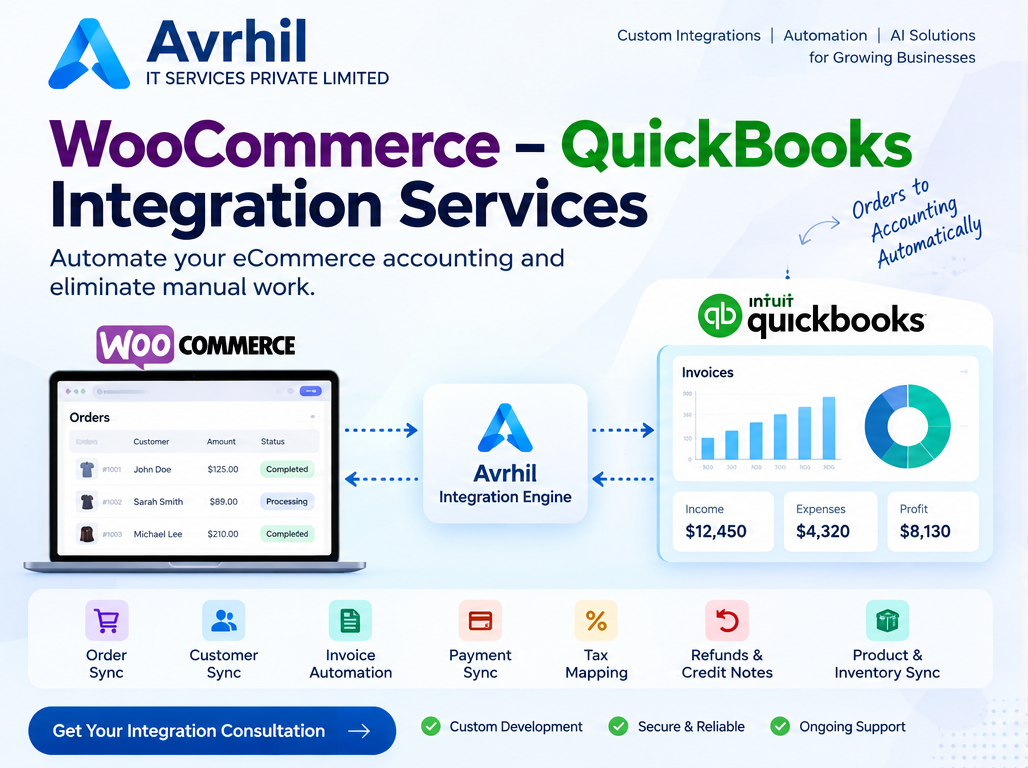
Every financial activity in your store, flowing straight into QuickBooks.
WooCommerce orders transferred with line items, quantities and discounts.
QuickBooks invoices generated with accurate pricing and tax detail.
Payments and transaction references synchronized for clean records.
Refunds and credit notes booked according to your accounting workflow.
We don't just connect two applications — we build the integration around your business processes.
Orders transferred to QuickBooks with order numbers, line items, quantities, discounts and customer information.
Customer records created or updated in QuickBooks with duplicate-handling rules.
QuickBooks invoices generated from orders with accurate product, pricing and tax information.
Payment information and transaction references synced to keep financial records accurate.
Refund-related records and corresponding credit notes processed automatically.
Products, SKUs, pricing and inventory connected where your QuickBooks edition supports it.
Taxes, shipping charges and discounts mapped to the correct QuickBooks accounts.
Webhooks, scheduled jobs or a combination keep data in sync your way.
WooCommerce orders flowing into QuickBooks through our integration engine.
From a new order in WooCommerce to reconciled records in QuickBooks.
A customer places an order in WooCommerce.
The integration engine detects the new order.
Customer and product information are validated.
Order details are mapped to QuickBooks.
Invoice and payment records are created or updated per your configuration.
Synchronization status and errors are logged for full visibility.
Failed transactions can be retried without creating duplicate records.
A WooCommerce QuickBooks integration automatically sends your store's financial activity to QuickBooks. Each order becomes an invoice or sales receipt, customers are created or matched, payments are recorded, and taxes, shipping, discounts, gateway fees and refunds are posted to the right accounts. It replaces the manual export, import and re-keying that normally consumes hours every week.
Good accounting automation is about mapping, not just moving data. This is how a typical order lands in your books, and every line is configurable.
| In WooCommerce | In QuickBooks | Notes |
|---|---|---|
| Order | Invoice or sales receipt | Order number carried across for easy lookup and audit |
| Customer or guest checkout | Customer record | Matched by email to avoid duplicates, or posted to a generic web customer |
| Product line items | Products and services, with SKU | SKU-based matching, with optional auto-create of missing items |
| Sales tax | Tax code and tax agency | WooCommerce tax rates mapped to QuickBooks tax codes |
| Shipping charges | Shipping income line | Separate account so freight income is visible |
| Coupons and discounts | Discount line | Mapped to a discount account instead of reducing product revenue |
| Payment and gateway fee | Payment, deposit and fee expense | Gross sale recorded, fee booked as an expense, net matched to the bank deposit |
| Refund | Credit memo or refund receipt | Linked to the original invoice |
There is more than one correct way to post eCommerce sales to QuickBooks. We configure the method your accountant prefers.
Best when you need a full audit trail for each customer, sell on account, or issue invoices to business buyers.
Best for pay-at-checkout retail, where the sale and the payment happen together.
Best for high order volumes, where thousands of individual transactions would clutter the books.
The most common reason eCommerce books do not balance is that the money in your bank is not the same as the sales in your store. Stripe, PayPal and other gateways deduct fees and pay out in batches, often combining several days of orders and refunds into one deposit.
Our integration records the gross sale, books the processor fee to an expense account, and posts the payment through a clearing account. When the payout arrives in the bank, the deposit matches the net total, so reconciliation takes minutes instead of hours.
We primarily integrate with QuickBooks Online through its API. If you run QuickBooks Desktop, see our WooCommerce QuickBooks Desktop integration page. If your store also needs inventory, purchasing and fulfillment control beyond accounting, take a look at our WooCommerce ERP integration.
Plugins are a reasonable starting point. Here is where a custom integration pays off.
| Need | Typical plugin | Avrhil custom integration |
|---|---|---|
| Standard orders to invoices | Supported | Supported |
| Your own chart of accounts and class mapping | Often limited | Fully configurable |
| Gateway fees and payout matching | Varies by plugin | Built into the posting logic |
| Custom plugins, fields and order workflows | Rarely | Supported |
| Historical order migration with duplicate checks | Limited | Supported |
| Multiple stores into one QuickBooks company | Often limited | Supported, with per-store tracking |
| Monitoring, error alerts and safe retries | Basic logs | Dashboard, alerts and idempotent retries |
The integration engine receives a webhook, or polls on a schedule, when an order is placed or paid. It validates the data, matches or creates the customer and items, then creates the invoice or sales receipt and the payment in QuickBooks. Every step is logged, and failures are retried without creating duplicates.
We primarily integrate with QuickBooks Online. QuickBooks Desktop is supported where a connector is available, typically through the QuickBooks Web Connector. See the WooCommerce QuickBooks Desktop integration page for details.
The gross sale is posted to income, the processor fee is booked to an expense account, and the payment goes through a clearing account so the net payout matches your bank deposit.
Yes. WooCommerce tax rates are mapped to QuickBooks tax codes so the tax collected on each order is reported to the correct agency. The exact setup depends on your QuickBooks region and tax configuration, and we recommend confirming it with your accountant.
Yes. Orders from each store can be tagged by location or class, so you can report on each store separately while keeping one set of books.
Yes. We configure the integration to create QuickBooks invoices automatically when WooCommerce orders meet your defined conditions.
Yes. Payment and refund synchronization is configured based on your payment gateway and accounting requirements.
Yes. We build historical data migration workflows with validation and duplicate prevention.
Yes. We accommodate custom fields, plugins and specialized order workflows through custom integration development.
Yes. Depending on the architecture and API capabilities, synchronization can use webhooks, scheduled jobs or a combination of both.
Explore the other ways we connect WooCommerce to ERP and accounting systems.
Stop spending hours transferring data between WooCommerce and QuickBooks. Let Avrhil IT Services build a reliable integration that connects your store, accounting and financial operations.
Get a Free Integration Discussion Discuss Your Requirements